Category: Tip

Software and technology related pointers and help for end users and support teams.

  • Quick TEMP Tip

    In any IT person’s quiver, one will find an array of standard quick tools at one’s disposal (I worked real hard making that sentence gender neutral… you are welcome).  Some of the standards of course are:

    I’ve added another one to my Revit quiver: emptying out the TEMP folder.

    Under Windows, the TEMP folder is supposed to hold (wait for it) temporary files.  Believe it or not, many applications don’t clear out their temp files like they are supposed to for one reason or another.  I have found that a good chunk of strange Revit problems (usually around syncing) can be cleared up with a nice emptying out of the user’s TEMP folder.

    You want to make sure Revit is closed.  You can close other software too, that will just make it less confusing.

    Go to START -> RUN and type in %TEMP%, then click OK.  That opens the user’s TEMP folder.

    Look at all the junk in there!  At this point, you can pretty much select it all and delete it.  Window will tell you if some software is trying to use it still.  Windows 7 will do a lovely job of just skipping the files it can’t delete and wipe out the rest.  Windows XP will halt the process, so you need to start over and this time NOT select the files that it couldn’t delete.  Repeat until you think you have things nice and clean.

    That’s it.  I use this trick at least once a month to clear up a random Revit issue.  I probably should actually research the specific problem, but really, who has time?
  • Default View Templates Applied on View Creation

    We have people who just like to click buttons.  For no reason, they just click things.  I am tempted to take away their mouse privileges.

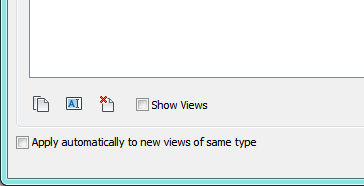
    Prior to 2013, you could really confuse folks on your team by forcing all new views of the same type to adopt a View Template of your choice.  You would do this by going to Apply View Template, selecting the View Template you want, and then checking the little box in the lower corner that says “Apply automatically to new views of same type”.  Then when anyone would create, say a Section, they would automatically have that View Template applied to their view.  So convenient for you!  And possibly so annoying for them!

    This little bugger in the corner
    This little bugger in the corner

    What if you are a clicker, and you shouldn’t have clicked that?  How do you get rid of it?  One might think one goes to View Template Settings.  One would be wrong.

    The only way we have found to fix this is to go to Apply Template to Current View, scroll down to the View Template in question, and then uncheck the box at the bottom.  Then you have to click OK while on that View Template.  You can’t switch templates prior to clicking OK.  It will ignore it.

    Because of this strangeness, we usually recommend creating a new view, applying the template with the unchecked box, then deleting that view.

    Luckily, the overhaul in 2013 made this checkbox go away.  I know we are still doing a lot of projects in Revit versions prior to 2013; I bet we are not alone in this.  So, hope this helps, and pay attention to what you are clicking next time!

  • Hide Element In Linked File

    You know how you have that linked model, and there’s that one pesky element that you don’t want to see.  Ever?  Just like you can hide individual elements in your model, you can do the same to elements in a linked model.  Mostly.

    Mostly.

    The trick is getting it.  This is where you good friend TAB comes in.  Just TAB down to highlight the element, click to select it, then do the usual right-click to hide element in view.

    What is that?  The option is grayed out?  Well, here comes the aforementioned “mostly”.

    If you have done any overrides to the model’s appearance on the Revit Links tab of Visbility Graphics, you lose the ability to hide individual elements.  It all has to be “By Host View” to allow that.

  • Cannot Delete, Rename or Move Revit File

    I’ve seen many other posts on this issue, but I think we may have found a clever way to fix it.

    In Vista and Windows 7, some machines will seemingly give up when you try to delete or rename or move a Revit file.  You get the progress bar but it just spins and spins and spins.

    From what I’ve read, there are two potential issues that folks have found:

    • The Indexing Service locks the file up
    • Windows and Revit get confused with the file when it tries to draw the icon preview

    The two usual fixes are to stop indexing Revit files, or tell Windows to stop drawing icons with file previews.

    I have never had the first solution work, so either it was a fluke placebo solution for the post I found, or we just haven’t had the problem.  Telling Windows to stop drawing icon previews is the only way we have found to fix this issue, but of course, no pretty previews for Windows on the icon of the file!

    Until now (BUM BUM BUM)

    I can’t take credit for this.  And this is a great example of getting fresh eyes on a problem. One of my IT guys came up with this solution and we are trying it out on a single PC right now, but so far it looks promising.

    He tracked down the Revit.FilePreview.dll file under his Revit folder and renamed it (something like Revit.FilePreview.old or something).  Then rebooted.

    So far, he is able to delete, rename, move, etc. the Revit files, and only the Revit files do not have a preview.  So far so good!

    For more recent versions of Revit, there is the Revit.Thumbnail.dll file, which will be our next file to rename.  We have several versions of Revit on each PC, and Windows likes to pick which version it wants to use with the RVT files, so that is probably the confusion there.

    Probably an unregistering of the dll would get the job done as well.  This is all just workshop-level stuff right now, so be very careful if you try it out.

  • Install In Order

    When we set up a new PC, one of the “highlights” is running through all the years of Revit, currently going back to 2009.

    We have discovered that the installations are much happier if we go in chronological order.  So, we start with the oldest, and work up one at a time until we get to the most recent version.  If we don’t do this, at least one of them will get mad and just won’t run correctly.  The splash screen will pop up and then just sit there.  Usually it’s 2010.  But don’t tell it that I told you.

    We have a hunch that there is some wacky Visual C++ thing going on, but we have never found the time to drill down and actually troubleshoot it.  The best thing we have is to just go delicately and put them on in order.

  • Revit Add-ons On the Network

    This is important to remember.  Because it seems to be one of those pieces of information that I forget at least once a year.  Why won’t you run, add-on that lives on the network?!!!

    Anyway, this is a really good post summarizing the problem and the easy fix.

  • I Can’t See My Tag! Wait. There It Is

    Just had one of those issues that makes you scratch your head a little bit.

    Someone was working hard in Revit, and in their model, in any view, when they would place a detail component or some annotation, they would not get the “preview” of the element before they placed it.  It would place fine.  Once they clicked where they wanted it to go, it showed up, but that ghostly indication of the element prior to clicking was no where to be found, all they had was their crosshairs*.

    Heads were scratched.  Brows were furrowed.  We looked at visibility graphics, we looked at graphics options ,we minimized, we restarted, nothing.

    Then, bam.  It hit me.  The current Workset!

    As expected, his current workset was some crazy workset that was not loaded in his current session.  We turned his current workset to the proper one, and we got the annotation preview.

    Here’s my guess at the long of it: detail and annotation elements don’t really live on the current workset.  They have their own “secret” workset that gets created for each view and that’s where they live.  When we were going to place the element, it was temporarily thinking it was going to go on the workset that was off, and if it were a model element, it would have placed on that workset, but then we would have gotten that awesome Revit warning that “you have placed the element, but you can’t see it”.  In annotation and detail’s case, you place the element, and it hops on the workset you CAN see.

    So that’s it.  Check your current workset, which is really good advice for any day in Revit.

    *The user actually didn’t say “crosshairs”… he said that all he could see what his “curser” which made me laugh to imagine a tiny foul mouthed individual yelling at him from his Revit model.

  • SLOG it Out – Cannot Find Central File

    This is probably one of those things that isn’t exactly the right thing to do, but it has helped us out on several occasions.

    For some reason, there is this one guy on this one workstation working on this one project (it actually happens on two projects, I just didn’t want to kill the narrative!) and every couple weeks he gets a warning that the Central File is missing.  The warning says: “Central Model cannot be found” etc etc etc.

    The funny thing is, the model IS RIGHT THERE!  We follow the path that the error gives us and it’s sitting right there on the server.  We copy a new local file and still get the error.  Other folks can access the model fine.  Just some bizarre combination of this guy and these models.

    We used to have to take his local file and save it as the new central, and then all was happy!  That took some time, and had the potential of losing other people’s work.  Not a great plan.

    We lucked across this little trick.  We got everyone else to sync and get out of the model.  Then, in the central file’s backup folder, we hunted down the SLOG file… and deleted it.

    And that works.  He opens his local file and all is right in the world.  Everyone else hops in and all is still well.  Revit generates a new SLOG file and people can get work done.  And the best part is, he can do this on his own.  He doesn’t have to wait for me to get up from my nap!  I mean, out of my important meeting!

    Like I said above, this is probably not sanctioned by Adesk.  It is definitely a “try at your own risk” solution, but it worked for us so I thought I would put it out here in case it can work for you as well.

  • Custom Add-Ins Complaints, Icons, etc

    Did I mention I was going to start playing with the API?  Hard to tell.  Well, I have, and I’ve had…mixed results.

    I simply don’t have the time to dive in and create uber-awesome and extensive add-ins, so I’ve been making little things that focus on one task or one annoying lack of functionality.

    Where we find Revit lacking quite often is with the documentation end of things (last 10%).  I understand that Revit is a BIM application first, and documentation application second (or even third or fourth) and the documentation end of things gets put to the side often.  I get that.  That’s why I wanted to go in and make some little programs that can help us speed up our more lengthy tasks.

    Unfortunately (for me), a lot of the non-model functions get put to the side with the API as well.  For example, it was only in the 2013 version that you could actually create a filled region.  I certainly am no developer, so I don’t know the hurdles it would take them to incorporate the annotation tools, but I do miss some.  Sometimes.  Or possibly I’m just too dumb to figure out how to do it.  There is a HIGH probability of this one.

    I have had success with a couple baby tools, however.  And now it’s time for me to get snobby.

    I’ve looked at a lot of add-ins trying to figure this thing out and so many work AWESOMELY.  But the icons they create for the tools?  Ghastly.  I’m no icon pro, but there is an Autodesk approved icon creation guideline out there, and I’m not sure anyone actually reads it.  (Here’s a nice blog post discussing some of it)

    Well, I read it.  And I thought I’d show off my icons.  I’m kinda proud of them.

    Fun, right?

    I guess the best test would be if you can guess their function.  Without mousing over and peeking at the ALT text.

  • Revit 2013 One Box Deployment Problem

    We are working on getting our installation for Revit 2013 ready and have stumbled across an issue that the deployment can have.

    Leveraging the power of the “One Box”, we planned on putting the deployment files on the server, and simply tweak the deployment for multiple disciplines.  Save a ton of server space!  High five!

    Well, everything looked good, and we had five shortcuts with five different ini files saved in the “CustomSettings” folder.  Things were going smoothly.

    Then we went to install.  For some odd reason, only the first deployment we created had the entire set of customizations, the others only got the license file; file location settings were missing, tweaks to options weren’t there.  Basically, the installations were ignoring the custom ini file.

    We contacted Autodesk, and they confirmed that this is an issue.

    I never know if I’m supposed to feel better or worse when they tell me that.

    No fix, of course.  And I’m not holding my breath on there being a fix.

    The workaround involves tweaking our install script so it copies the tweaked ini filed from the AdminImage\CustomSettings folder to the application data folder for the user’s PCs.  Keep in mind that this location is not the same in XP and Windows 7 (Vista is dead to me).

    For Windows 7, you need to copy here:
    C:\ProgramData\Autodesk\RVT 2013\UserDataCache\

    For XP, copy the ini here
    C:\Documents and Settings\All Users\Application Data\Autodesk\RVT 2013\UserDataCache\

    In both cases, you need to copy your custom ini file and rename it to Revit.ini, replacing the one that the installer created.

    What’s odd is the deployments that weren’t created from One Box work fine.  I have given up expecting any Autodesk deployment to go as advertised.  Every year we fight a new set of problems. My expectation is that the smaller firms just walk from desk to desk to install.  And the really big firms have an IT group and fancy-pants servers whose single job is to install software.  We are very much a middle size firm: WAY too many seats to install one at a time, and not nearly enough in the IT budget to dedicate to software deployment.  So, we make do with what we have.  It would be nice if Autodesk could put a little more effort in their deployment creation tools.

Design a site like this with WordPress.com
Get started