Tag: Revit

  • Don’t Forget You Can Search!

    Don’t Forget You Can Search!

    Another one slips through the cracks or user’s minds. Again, funny what gets forgotten or overlooked through the years. It’s critical for trainers to not only teach new features and procedures, but also remind folks of lesser used but critical functions.. and sometimes it’s not a reminder at all.

    You probably have a HUGE model with a TON of stuff in it (or even a TONNE of stuff, depending if you work in metric) and sometimes you load in a family or have a view and you just can’t find it.

    Do you remember what it’s called, or even part of its name? You’re in luck!

    Right-click on anything in the project browser and you get an option at the bottom of the context window to Search…

    search

    Type in part of the name of what you are looking for and it will go thru the entire model and find views, schedules, families, etc that match up with that phrase. It will NOT start over at the top, so start your search as high up as you need to.

  • Moving Drafting Views Around

    Chalk this up to a quick little reminder. I find it interesting what the experienced Revit users in our office either don’t know how to do, or have just plain forgotten. It’s a good reminder about how complex Revit can be. It is also a reminder that I can definitely not know things or forget things as well. For example, what did I have for breakfast? No one knows!

    Someone asked me about getting some drafting views out of a project in a 2013 model into a  2014 model. The basic idea would be to use INSERT VIEWS FROM FILE, but these models were really big. Add to that, the extra memory needed for an upgrade, and we had a recipe for a PC that would catch on fire.

    Time for a third wheel! In my mind, I had the idea about using a “tertiary” model: transfer the views from the 2013 model into an empty 2013 project, upgrade that file, then transfer again in 2014.

    Not bad, but the user came back and said “really? There isn’t a better way?” Before simply emailing the reply “Hey! Who carries the BIM Stick around here?!!” I thought they were right. That method kind of sucked. And there was a tickling at the base of my brain about a feature I had never really looked into. Maybe it’s time to research and not assume that I know everything.

    Seriously, this is my BIM Stick
    Again, the BIM Stick

    Being in IT, and being in BIM support, one has to have a refined set of techniques for discovering new concepts, an expansive set of tools one uses to explore new ideas, and an organized method of testing each one and documenting the results.

    I started right-clicking around in Revit.

    BAM! What is this I see? “Save to New File…” right there in the context menu.

    bam

    Yup. I bet a lot of you know about this. Some of you may not. It’s a cute little function that will let you export the selected Drafting View (or Views) into a teeny tiny Revit file. No extra garbage. No transferring into a tertiary file. This was my tertiary file.

    Simple after this. Just open and upgrade this newly exported file in 2014 (a procedure that took WAY less time due to file size) and INSERT VIEWS FROM FILE to get them in there.

    This will only work with Drafting Views, sadly, but it should be helpful getting that little detail out of that old project.

    And don’t forget that no matter how long you’ve been working in Revit, you probably don’t know everything.

  • My Heart Breaks a-new

    Another new Revit, another disappointment.

    Yes, I know new features lists have been out for a while and people have been using 2015 for some time now, but some things just… the hurt is TOO MUCH, you know?

    Seriously, now that View Templates are working like they should, and have been for some time, why must I still rely on the antiquated Phase Filter?

    Just give me access to the Phase and Phase Demolished parameters in my View Filters! While we are at it, open up all the parameters to the View Filters!

    Yes, this is a total recap of a previous post, and yes, kudos to you for remembering that, but this has got to be one of my biggest pet peeves at this point. Keep Phases. Dump Phase Override and Phase Filters. Give me one place (granted, it’s a BIG place) to control what my views look like.

  • Revit Deployment Time

    It’s that joyous time of year again! The time when the “first” service pack comes out for my favorite design software and I start thinking about deployments!

    I wrote a very detailed deployment article some years back, and most of it still fits, however I have been able to tweak the code slightly. Here is a quick overview of what we found to be most effective:

    Since we are in a domain setting and our users don’t have admin rights, we removed the UAC for workstations through a GPO.

    A fantastic tip from the outstanding blog Up and Ready helped me track down the individual software packages for the Suites that we have. I like having an individual deployment for each piece of software, so I can give User A Revit and AutoCrap, but I can give User B Revit and Max, and then give User C only Navisworks. When you create a deployment from the Suite, you can specify only one piece of software, but the package that gets created is HUGE and has a lot of extra crap. Fortunately, you can use your Suite license on each individual software that the Suite includes. So, download the individual software package and create deployments from those to save space.

    I then use the Autodesk utilities to create a deployment, after tweaking our Revit.ini file. This is much better than years ago. It’s clean and the importing of the Revit.ini is really nice. It’s a tad annoying that I have to install “vanilla” Revit first, edit my options, and then track down the Revit.ini file to use, but it’s not horrible, and it works. Possibly it would be better to have a utility that only creates a Revit.ini file with no Revit; some wizard-y thing. Eh.

    Again, I am using the remarkable AutoIT script editor to create two “wrapper” files: one we call “net” and one “local”. If you do some IT, this utility is gold. Get it. Now.

    The “net” wrapper gets assigned through a GPO to a scheduled task that kicks off whenever someone logs in to the appropriate PC. “Net” will check to see if a little .txt file exists on the C: drive. If it doesn’t, then it goes and copies “local” to the C: drive and runs it. A little note about the text file: it’s here to see if the installer has run. We could check to see if the Revit.exe exists, but this way I can copy the .txt file to individual PCs that we may happen to want to skip this install, but not put in their own OU.

    “Local” wrapper has all the info from the installer shortcut created by the deployment. Its main job is to pretend it is a user with admin rights, then run the install. Once it is finished, it write the .txt file to the PC to say “Hey! I’m done!”

    We have had a high rate of success with this method. It allows us to deploy a nice tweaked version of Revit and not spend too much time messing with it. If you would like to get a copy of our “net” and “local” files, fee free to take a look below.

    NET

    Local $TxtFileNameLocal
    Local $TxtFileName2
    Local $LauncherFilePath
    Local $LauncherFileName
    Local $LocPath
    Local $LocLauncher
    Local $MSoftPath

    ;create the place to keep the local file – will skip if path already exists
    DirCreate(“LOCAL WRITABLE PATH TO SAVE THE LOCAL FILE”)
    $MSoftPath = “LOCAL DRIVE LOCATION TO STORE TEXT FILES”
    $LauncherFilePath = “NETWORK PATH TO LOCAL WRAPPER FILE”
    $LocPath = “LOCAL DRIVE LOCATION TO STORE LOCAL WRAPPER FILE”

    ; the file that gets written after installer runs so it doesn’t run again
    $TxtFileName = “REVIT_15.txt”

    ; local wrapper name
    $LauncherFileName = “rvt15-local.exe”

    ; checks if the text file exists
    If FileExists($MSoftPath & $TxtFileName) Then
    ;text file exists, so nothing to do
    Else
    ; no text file – rock on
    $LocLauncher = $LocPath & “\” & $LauncherFileName

    ; copy the local file down
    FileCopy($LauncherFilePath & $LauncherFileName, $LocLauncher)

    ; run the local file with admin rights
    RunAs(“ADMIN”, “DOMAIN”, “PASSWORD”, 1, $LocLauncher)

    EndIf

    Local

    #RequireAdmin
    ; text file to create after installer attempts to run
    Local $TxtFileName
    $TxtFileName = “LOCAL DRIVE LOCATION TO STORE TEXT FILES\REVIT_15.txt”

    ; warm up the network
    DriveMapAdd(“”, “UNC PATH TO DEPLOYMENT”)

    ;setup.exe and the deployment ini file can be copied from the shortcut
    ;that gets created with the deployment
    ;as can the arguments – below are what I get from mine
    Local $ProgramFile, $argFile, $command

    $ProgramFile = FileGetShortName(“PATH TO DEPLOYMENT\Setup.exe”)
    $argFile = FileGetShortName(“PATH TO DEPLOYMENT\RVT2015.ini”)
    $command = $ProgramFile & ” /qb /I ” & $argFile & ” /language en-us”

    ;this is the actual installer
    RunWait($command);MsgBox(1, “Title”, $ProgramFile)

    ;write the text file – note that the file gets written even if the installer fails
    ;this is so the PC doesn’t keep trying to install again and again – track down the issue
    FileOpen($TxtFileName, 1)
    FileWriteLine($TxtFileName, “Revit 2015 Installed”)
    FileClose($TxtFileName)

    Enjoy! Hope this makes your installations a little happier!

  • Infraworks 360 Initial Thoughts

    I’m having a lot of fun with my 30 day trial of Infraworks 360. Being in the arch end of the design world, I never paid much attention to Infraworks Naught, but our friends at Autodesk have been pushing the 360 end of it hard, specifically Model Builder.

    “Pushing”. We’ll come back to that in a second.

    The Model Builder is easy to get started and get your initial data downloaded. Amazingly easy, actually. I found the importing of AutoCrap and Sketchup models to be a little confusing when trying to place (be sure to tell Infraworks what type of thing your thing it is), and my Revit test model didn’t even load up properly.

    But so far, the slickness of the software has impressed me. I might need to get a few copies. And that’s where the fun comes in.

    Our Suite subscription allows us to have a handful of Infraworks licenses (sidenote: Infraworks is surprisingly hard to type, and really hard to say). This is NOT Infraworks 360, which is what you need to have the Model Builder awesomeness. Bear with me here. My Infraworks licenses are networked, so I have a nice pool of available seats and can maximize usage, and can leverage expenses and all that business jargon crap. Infraworks 360 requires you to upgrade an Autodesk 360 account to be able to access it, which limits who can use it and totally makes me shrug and say “wha?” BEYOND THAT, the use of 360 is going to require Cloud Credits (don’t get me started on Cloud Credits), but Autodesk can’t tell me how many yet.

    Yeah. The pusher. They are going to get us hooked and then tell us how much it costs for the sweet sweet GIS and satellite and infrastructure candy.

    So, I am EXTREMELY cautious about buying even a single seat of Infraworks 360. Even if that is not a huge investment, who knows if it will be prohibitively costly to use the portions we want to use. My suggestions: dump the extra license fee for 360. I know how much I spend on my Ultimate Suites. You can have Showcase back. Gimme Infraworks 360, or at least Model Builder. On top of that, let me know how many cloud credits I am going to have to spend. I REALLY want to share this new technology with everyone, but I am REALLY nervous to do so right now.

    So, yeah, get the 30 day trial and use the Model Builder, but watch out for when the pusher comes to you with the bill.

  • Default View Templates Applied on View Creation

    We have people who just like to click buttons.  For no reason, they just click things.  I am tempted to take away their mouse privileges.

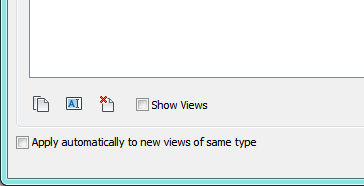
    Prior to 2013, you could really confuse folks on your team by forcing all new views of the same type to adopt a View Template of your choice.  You would do this by going to Apply View Template, selecting the View Template you want, and then checking the little box in the lower corner that says “Apply automatically to new views of same type”.  Then when anyone would create, say a Section, they would automatically have that View Template applied to their view.  So convenient for you!  And possibly so annoying for them!

    This little bugger in the corner
    This little bugger in the corner

    What if you are a clicker, and you shouldn’t have clicked that?  How do you get rid of it?  One might think one goes to View Template Settings.  One would be wrong.

    The only way we have found to fix this is to go to Apply Template to Current View, scroll down to the View Template in question, and then uncheck the box at the bottom.  Then you have to click OK while on that View Template.  You can’t switch templates prior to clicking OK.  It will ignore it.

    Because of this strangeness, we usually recommend creating a new view, applying the template with the unchecked box, then deleting that view.

    Luckily, the overhaul in 2013 made this checkbox go away.  I know we are still doing a lot of projects in Revit versions prior to 2013; I bet we are not alone in this.  So, hope this helps, and pay attention to what you are clicking next time!

  • Hide Element In Linked File

    You know how you have that linked model, and there’s that one pesky element that you don’t want to see.  Ever?  Just like you can hide individual elements in your model, you can do the same to elements in a linked model.  Mostly.

    Mostly.

    The trick is getting it.  This is where you good friend TAB comes in.  Just TAB down to highlight the element, click to select it, then do the usual right-click to hide element in view.

    What is that?  The option is grayed out?  Well, here comes the aforementioned “mostly”.

    If you have done any overrides to the model’s appearance on the Revit Links tab of Visbility Graphics, you lose the ability to hide individual elements.  It all has to be “By Host View” to allow that.

  • Revit Keyplans – Can I Make This Any More Difficult?

    Keyplans are one of those functions that I hope and hope and hope one day will have an easy way to get working in my project.

    Right now, we have an 8 step procedure that we try to teach people how to use.  “8 steps,” I hear you saying, “That’s not bad.”  Except that each steps seems crazier than the last, and it involves multiple pieces of software, and the ability to edit families and understand parameters.  These are not easy Revit tasks, and the more I can keep our typical user away from them, the happier I am, but if I don’t show them how to make keyplans, then I have to make them, and that would mean less napping and looking at cats on the Internet!

    Basically, our mess involves exporting the plan to DWG, tracing it to get the simple shapes, importing those shapes into a new Revit family, adding filled regions and text, making parameters to control the visibilty of the filled regions and text, putting THAT family into the border family, making parameters in the border family to talk to the plan family, then re-importing the border back into the project.

    Still with me?

    There are plenty of stops along that wild ride that you could do something different, but ultimately, to get the flexibility we need, the number of steps stays pretty consistent.

    I don’t even know how a better tool would work.  Maybe some kind of Area Plan that can live on multiple sheets.  Maybe a view that has a designated area on the border.  Who knows.  All I know is, whenever someone asks me how to make a keyplan for their project, I hit the MUTE button on the phone, let out a deep sigh, and then tell them how to do it.

    Then I get angry because I forgot to UNMUTE the phone first.

    If someone has a nice easy way of Keyplans, I would love to hear it.

  • Revit Is Getting Personal

    A user emailed me this wonderfully obtuse Revit error message today:

    weight

    Since when did Revit start handing out medical advice?  Is this even advice?  Is it saying “good job”, or is it telling me (much like my doctor does) that I need to pay attention to it?

  • Seriously, Phases?

    The subscription prices may seem pretty high, but I do find real change with each release of Revit.  I may not like the priority they are giving to some thing, but I can honestly say that work does get done every year on the software, and they make strides.  Even if some of those strides are confusing and weird (I’m looking at you, Materials).

    Now, I have been using the software for over half a decade now.  For as long as I remember, Phases and more specifically, Phase Overrides have always been handled the same way.  You want phased elements to look different?  Use the Override.  You want them to look different in a different view?  Tough.  Every override is the same in each view.

    My friends, it is time for Phase Filters and the Phase Graphic Overrides to get some well deserved attention.

    Why in the world can I not control the appearance of elements based on their phase in my usual View Filter?  It makes so much sense there!  But you can’t even access the parameters associated with phases.  It’s like they… don’t exist…

    I’m not even saying to change the entire phase system.  The idea is sound and works about as well as it can, except for those stupid filters and overrides.  Phase appearance should be controllable just like any other parameter through my View Filters.  I think in the past, Revit was trying to be helpful and force some consistency, but now that I can lock down my View Templates, it’s time to let go.

    And it only makes sense that the VG/VV window is your one stop shop for how this view looks different from the other view.  Let me control phase appearance there as well.  Don’t make me have to try to explain to someone how it works again.  I need a flowchart.  And it inevitably comes to blows (we are very passionate about our design software around here).

    Granted, it’s not every view that needs to look different in terms of phases… demo is dashed… existing is light… new work is dark… MOST OF THE TIME.  On each project there are one or two views, especially with more than one discipline, that needs to have the appearance of existing elements look just a little different, or maybe the scale is so small that the override line weight makes the lines get lost, so for this one view I would like to use a heavier line but the same line style, I don’t want to change the lineweight for all the views, but with the current implementation, I am forced to.

    All I’m saying is, open up those parameters to the View Filters.  Set them free!!

Design a site like this with WordPress.com
Get started