Tag: views

  • Quick Tip – Sheets Are Views Too!

    Quick Tip – Sheets Are Views Too!

    Sheets can be a tad confusing when you have them loaded up with views. Don’t forget that sheets themselves are views also.

    What this means is that the sheet will have its very own Visibility Graphics settings. The Sheet’s settings do NOT override the settings for the views on that Sheet. So you can’t turn off walls on the sheet and expect to not see walls in your views. You need to go to each view and turn off the walls there.

    So, be sure to pay attention to what Visibility Graphics settings you are changing. I have seen several occasions when the settings for the sheet were changed when the individual thought they were changing the setting for the view. It was chaos! It was madness! Dogs and cats, living together! (Not that bad. But we did scratch our heads for about a minute.)

  • Default View Templates Applied on View Creation

    We have people who just like to click buttons.  For no reason, they just click things.  I am tempted to take away their mouse privileges.

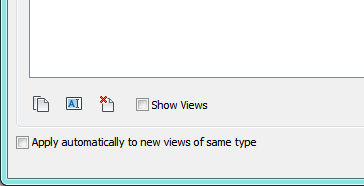
    Prior to 2013, you could really confuse folks on your team by forcing all new views of the same type to adopt a View Template of your choice.  You would do this by going to Apply View Template, selecting the View Template you want, and then checking the little box in the lower corner that says “Apply automatically to new views of same type”.  Then when anyone would create, say a Section, they would automatically have that View Template applied to their view.  So convenient for you!  And possibly so annoying for them!

    This little bugger in the corner
    This little bugger in the corner

    What if you are a clicker, and you shouldn’t have clicked that?  How do you get rid of it?  One might think one goes to View Template Settings.  One would be wrong.

    The only way we have found to fix this is to go to Apply Template to Current View, scroll down to the View Template in question, and then uncheck the box at the bottom.  Then you have to click OK while on that View Template.  You can’t switch templates prior to clicking OK.  It will ignore it.

    Because of this strangeness, we usually recommend creating a new view, applying the template with the unchecked box, then deleting that view.

    Luckily, the overhaul in 2013 made this checkbox go away.  I know we are still doing a lot of projects in Revit versions prior to 2013; I bet we are not alone in this.  So, hope this helps, and pay attention to what you are clicking next time!

  • Underlay Action – Slice, Slice, Baby

    So, I’ve found myself with some lovely time spent working through the joys of Underlays.  We just had some confusing goings ons, and I thought I would try to get to the bottom of it.

    Underlays can be very useful for figuring out what is going on above and below.  And on top of that, any Linework tweak you do to an element in an Underlay, will stay on when you turn the Underlay off!  That’s the kind of thing that gets a geek excited!

    From a previous event, I decided I should spend more time in the Help docs, to see if that could lead me the right way.  This was the most important thing the Help File had about how they work:

    Displays another slice of the model under the current plan view. That slice of the model can be from above or below the current level. The underlay appears dimmed and is visible even in hidden line. The underlay is useful to understand the relation of components on different floors. Normally, you would turn off the underlay before exporting or printing the view. You set an underlay by specifying a level. The slice of the model between that level and the next level up displays. Three of the underlay options (Current Level, Level Above, and Level Below) are relative to the current level. All other choices are absolute. See Halftone/Underlay.

    So not much.  Had to crack open Revit and play for a while.

    I would like to preface, this is all based on minutes and minutes of vast experimentaiton.  If someone can point me out as wrong, PLEASE DO.  I would love to know this stuff.

    First off – Underlays don’t show linked models.  I tried copy/monitor levels, tried messing with Visibility Graphics, no way could I get a linked model elements to show in an Underlay.  It just didn’t exist as far as the Gods of the Underlay were concerned (Hades, Pluto, Osiris).

    Next up is a clarification of the Help File.  Both setting the Underlay and the Underlay’s own view range are dependent on levels… but they MUST be levels that have a floor plan or RCP associated with it.  I’ll clarify.

    When you go to select what Level you want for the Underlay, only levels with plan views will show in the list.  In the below snapshot, you see the dropdown for Underlay only showing “Level “1 and “Level 2” (and “None”), when clearly the elevation indicates Level 4, Level 5 and Roof.  Level 4, Level 5 and Roof have no plan or RCP associate with them.  If I were to create a plan, then that level would show up in the list.

    The Help File also indicates that the “slice” of what the Underlay shows is from the level you select to the level above that level.  The Help File does NOT indicate that the “level above” must have a plan associated with it.

    So, in the example above, if “Level 1” is selected as the Underlay, the “slice” will go from Level 1 to Level 2.

    If “Level 2” is selected, then the “slice” will go from Level 2 to… infinity… or wherever Revit decides to stop the model.  I didn’t test this.  I simply put a wall 100′ above Level 2 and it did indeed show up when the Underlay was set to “Level 2”.

    As soon as a plan or RCP are created for a level above Level 2, then the “slice” will shrink.  If that plan or RCP is deleted, then the “slice” will grow again.

    So, I would propse the Help File be tweaked.  First of all, get rid of that line about “Three of the underlay options (Current Level, Level Above, and Level Below) are relative to the current level.”  I don’t even think that’s an option.  Beyond that:

    The slice of the model between that level and the next level up, with an associated plan view, displays.

    And maybe add a picture of me giving someone a high five while actually drinking Slice.  That would be cool.  Does that drink even exist anymore?  Now I’m thirsty…

  • Don’t Forget! LOW WALLS! Watch your…feet…

    This is a “hiccup” that I forget.  So I’m writing it down here in the hopes that it will force me to remember (hint: it won’t!)

    You remember way back when, we talked about how floors don’t exactly follow the View Range rules?  Walls are kind of the same.  Except a lot more confusing.

    This is hard to understand, so I’ll point you here and here (I especially like how that last one calls it a “feature”) for some different ways of explaining it.

    Here are the criteria for this insanity:

    1. You have a wall
    2. The top is UNCONSTRAINED and not attached to anything
    3. Your View Range cuts through the wall
    4. The top of your wall is less than 6′ from the Bottom of the View Range

    If your walls meet all these criteria, your wall will NOT show with the CUT style.  It will show PROJECTION.  Yes, even though you are cutting through it.

    If you set the top of your wall to constrain to a level, any level, and then offset it, it will then show as CUT.  Or if you drop the bottom of your view range down so the top of the wall is at least 6′ from the bottom of the view range, it will show as CUT.

    Seriously, there has to be a secret manual somewhere.  Indiana Jones and I will try to track it down soon.

  • Quick Tip – Your Model Looks Great

    We sometimes (all the time) find ourselves needing to adjust the appearance of our model elements in a view to get stuff to look… well, just plain right.  And then there are the times when we cut a detail view and frankly, the model just isn’t looking too good at that scale and we just want to hide it all and draft over top of it.  Heartbreaking, but it happens.

    You can open Visibility Graphics and select all your families and change the appearance right there, but Revit does offer up a quicker way to make some very basic wholesale changes to your model elements in your view.  Under View Properties, there is a parameter called “Display Model”, and frankly, it’s one of those parameter names that scares people.  Normally, I’d say it’s good to follow that gut feeling and NOT push the button, but this button is benign.  At least, it’s easy to undo.

    Hitting the dropdown will show three options, each one hopefully self-explanatory.

    • “Normal” will not make any changes to your model elements in this view.  It will look “normal”
    • “As underlay” applies your project’s underlay appearance override to every model element in the current view
    • “Do not display” just turns off every single model element in the view

    A very simple function, but very powerful when you need to make this kind of change.

    Display Model parameter

  • Quick Tip – Dangerous Duplicate Views

    This is a nasty one.  We have a lot of users that will duplicate a view to save time.  We’ve actually been endorsing a course of action of NOT duplicating views.  We’ve found too many things that folks forget about tweaking on a new view (this of course, does not go for Duplicate as Dependent) that was duplicated from another view.  Categories turned off, elements hidden, etc.

    But here’s the nastiest.

    We had a batch of section tags that looked like they were being censored.  The detail number and sheet in the tag had lines through them.

    Lines through tag

    That’s not good.  It looks like the world’s worst censor got their hands on our drawings.  And it just looks plain dumb.

    Turns out what happened is that the view was duplicated, for one reason or another.  WHEN A VIEW IS DUPLICATED THE VIEW TAG IS DUPLICATED AS WELL.  The second view was never put on a sheet.  So we had two section tags on top of each other.  One that was on a sheet and one that wasn’t.

    If you duplicate views, pay extra attention to the tag for the original view.  Scoot it out of the way to find the duplicated tag and hide it.

    Before anyone speaks up, yes we could just not print unreferenced views, and we often do this, but the above is still sloppy, and we are always trying to keep our Revit model clean.  Because a clean model is a happy model.

  • Quick Tip – Smile for the Camera!

    I am always surprised when I find a very experienced Revit user unaware of some feature or function in the software.  I shouldn’t be surprised, because I’m often finding new things and a piece of software like Revit is amazingly complex, and knowing every single facet has to be a Herculean effort.

    In this light, I teach a class for our firm called “The Top 10 Things All Revit Users Should Know” where I spend a couple hours going over some tips and tricks that can get forgotten or overlooked.  Can you guess how many tips and tricks?  That’s right!  64!  Why that many?  Why not 10?  Because there are WAY more than 10 tips and tricks that I expect all our users to know.

    I am going to drop a handful of those tips throughout some upcoming blog posts.  There’s a good chance you know the tip.  If you do, don’t roll your eyes and make rude noises, just let the rest of the folks out there go “huh, I didn’t realize that.”  Hopefully, everyone will learn something and we will (checking business-speak manual) “raise all the boats together.”

    (Just shut up and get to the tip)

    You place a camera view in your model.  It’s just slightly off kilter, maybe not looking far enough up, or maybe not looking enough to one side or another.  You could select the view, click SHOW CAMERA, go back to the plan view, spin it, change the properties to adjust the height, etc etc.  But it would be a lot easier if you could just pivot that camera on its tripod while you are in the view.  I’ll break the tension.  You can.

    Here’s the trick.  To simply “pivot” and “rotate” the camera on its tripod, you need to select the CROP REGION BOUNDARY for the camera view (so it’s highlighted), then in the view, use your SHIFT-middle-button pan and rotate to simply look around.  If the crop region is NOT selected, then you will just be doing a typical rotate where you move around the model.  This will work for any 3D view, not just a camera view (it’s just more impressive in a camera view).  Give it a spin to see how it works.

    Get it?  Give it a “spin”?

    Sorry.  Next post I’ll try to be pun-free.

  • Spinning! 3d View Quick Tip

    Sometimes it’s the small things that we forget or overlook.  I was surprised to find out that someone who I could consider one of my top Revit users was unaware of the following little nugget.  So I thought I would jot it down here.

    Navigating through your 3d view can get a little tricky when your model starts to grow.  Holding down the SHIFT key while center-button dragging will rotate your model around to let you get a better view of another side.  By default, Revit rotates around the center of your model.  This might lead you to rotate-pan-rotate-pan-rotate-pan until you see the angle you want.

    Here’s the nugget.  Wanna know a nice trick?  Select an object before you rotate.  The object you select will then become the center of your rotation.  No more rotate-pan-rotate-pan-rotate-pan!

  • Plan Region Oddities

    We had a hiccup with our Plan Regions today that I thought I would throw out here so others can enjoy our twenty minutes of panic and confusion.

    For a little background so we’re all on the same page… let’s say our cut plane is about 4′-6″ on a typical floor plan.  Actually, let’s say it’s precisely 4′-6″.  That gets us through most doors and windows and walls.  Things that we like to slice through (through which we like to slice).

    But, alas, this one little roof shed has a louver that’s up around 8′-0″.  It would be absolutley silly to make another plan simply to show this louver.  What is one to do?

    Luckily, Revit has a solution for us.  Looking under VIEW you will see the PLAN REGION tool.  This is a pretty nifty thing.  A plan region allows you to define an area on the plan that follows different view range settings.  Which will allow us to move the cut plane around the lovers to 8′-2″.

    Clicking PLAN REGION will take you into the ubiquitous sketch mode where you will sketch out the perimeter of your new plan region.  While still in sketch mode, you can click the Plan Region Properties button and in there you’ll see the View Range button.  Click that, and you get the same view range settings that you would see on any view.  Tweak them to what you need, click OK, finish your sketch and voila! that small sketched area now has a different view range.  End background.

    The oddity came in when a user had opened a view with a Plan Region and all of the walls in that region were missing!  First reaction, of course, was that someone had deleted the walls.  Who shall we kill?!  After some quick investigation, turns out the walls were there.  So what was up with them not showing through the Plan Region?

    To test, all we did was create a new Plan Region with the same view range.  Yup.  It all showed up.  Walls, tags, everything.  But that original Plan Region was mad.

    To fix it?  Selected the region and clicked its EDIT button.  Got back into sketch mode.  Made no changes, and simply finished the sketch again.

    Poof.  Everything showed back up.  It just needed a kick in the pants, apparently.

    We love our Plan Regions.  I just hope they start behaving better.  Panic attacks are not a good thing when you’re one week to go on a project.

  • It’s All in the Details

    For many new Revit users and folks putting documents together in general, the idea of letting go of certain detail work in larger scale is tough to get.  So tough, in fact, that they sometimes just don’t.  Not ideal, and not very BIM-y, but totally understandable

    So you have a wall section, and you have a detail callout of where it joins the roof.  You go into the detail and use some detail lines and detail components and flesh it out and it looks really nice.  Then you look at the wall section again and it looks… empty… and someone above you is angry and wants them to look the same.

    This sort of falls in the last 10%.  It’s not exactly Revit not being able to do what we want it to do, it is working just as you would expect it to work – detail work is view specific.  So you would need to duplicate all that detail work in the wall section.  Then if you update one, you need to update the other.  That’s a lot of work and big potential for errors.

    There is almost a way around it, though.

    Wherever you drew your detail work – select the lines, the detail components, the text, the symbols, everything except model work and dimensions and datum annotation.  Group it.  Give it an appropriate name.  It will become a Detail Group (you see where I’m going with this?)

    Once you have your newly created group, select it and copy it.  Then change to the other view.  Simply pasting it will get Revit to want to force it to the same location, or you can do a Paste Aligned – Same Place to drop it where it was.

    So, now you have a group, in both places.  Voila!  Need to update the information, just open the group and go for it.  The detail line work will stay up to date in both spots.

    Not ideal, but not a bad work around.  It will NOT take Edit Cut Profiles nor will it take dimensions, so avoid those.  Other than that, try it out and hopefully it can save you some time and discrepancies.

Design a site like this with WordPress.com
Get started